PNG to PDF Converter
Convert PNG images into a single PDF document.
Turn your PNG photos into a single, tidy PDF without losing any detail. Upload one picture or a whole folder of shots, and PDFit places each one on its own page in the order you choose. The whole conversion happens in your browser, so your files stay private and the result is ready in seconds.
Drag & drop your images here
or click to browse files
Why Convert PNG to PDF?
Bundling PNGs into a PDF gives you one clean file that is easy to send, print, and archive.
- Email a full photo set as a single PDF attachment instead of many image files.
- Create print-ready albums where every PNG keeps its original quality.
- Combine product shots or scan sets into one document for clients and colleagues.
- Protect original PNGs from casual edits while still sharing them at full resolution.
How to Convert PNG to PDF
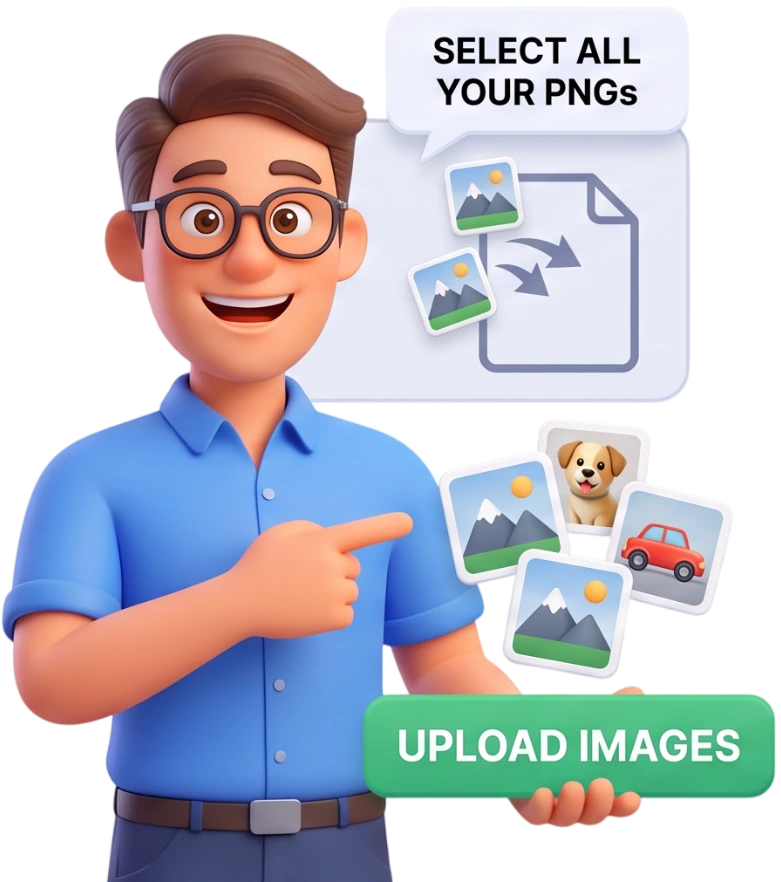
Step 1: Upload Your PNGs
Click the upload area or drag and drop your PNG files straight onto the page. You can add several pictures at once, and each file can be up to 100MB.
Tip: export your photos in PNG from your phone or camera so they keep all their color and detail.
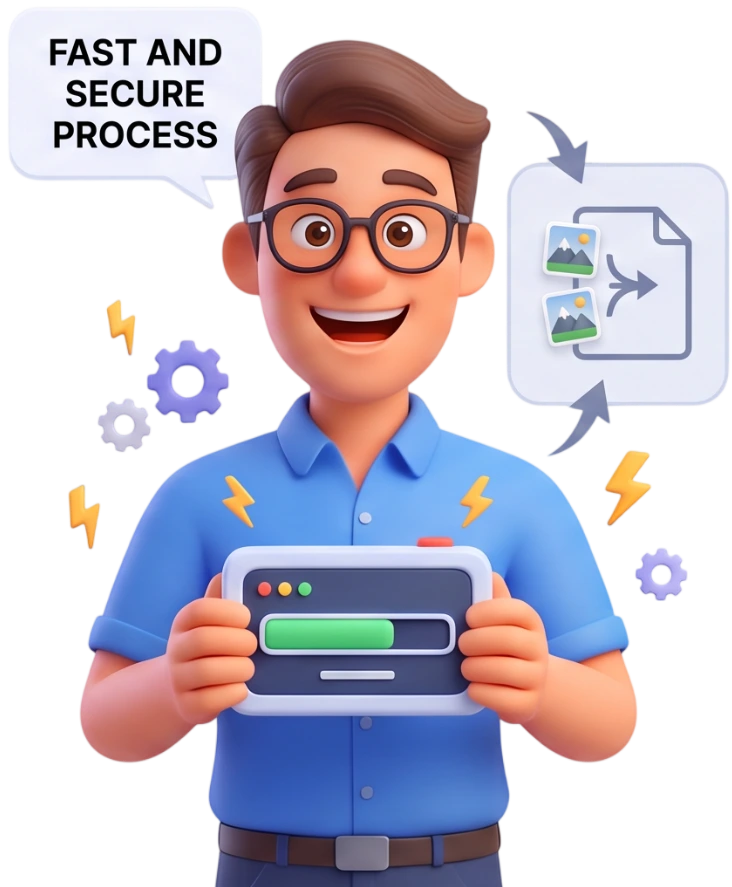
Step 2: Review and Arrange
Every PNG becomes its own PDF page, so check the thumbnails and drag them to set the right order. Use Add More to include extra shots or Clear to start over.
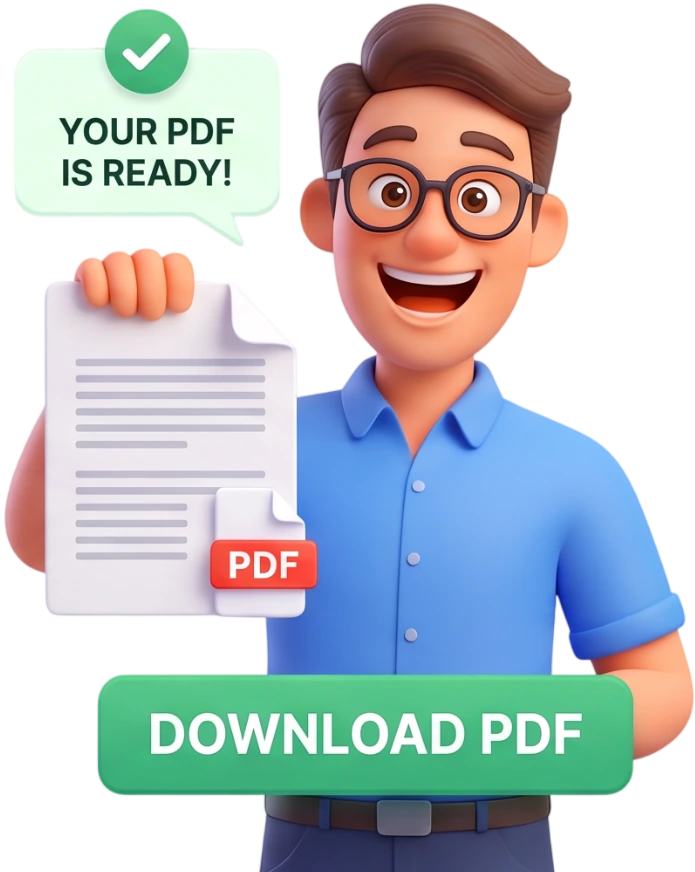
Step 3: Convert and Download
Click Convert to PDF and your combined document is built in seconds. The finished PDF downloads automatically, ready to share or print.
Frequently Asked Questions
Is there a file size limit?
Each PNG can be up to 100MB, which covers photos straight from a phone or camera. The tool stays fast because it processes files in your browser instead of on a remote server.
Are my PNGs uploaded anywhere?
No. The conversion runs entirely on your device, so your photos are never uploaded to a server. Files are handled locally and cleared automatically when you are done.
Can I convert PNG to PDF on my phone?
Yes. The tool works in any modern mobile browser, so you can turn your phone photos into a PDF right from your gallery without installing an app.
Is the PNG to PDF converter really free?
It is 100% free. There is no registration, no watermark, and no hidden charges. Convert as many photos as you want, as often as you want.
Does converting change the image quality or file size?
Your PNGs are embedded at their original resolution, so quality stays identical and nothing is re-compressed. The PDF may be slightly larger than the images because it bundles them into one file.
Can I convert PNG files to PDF?
Yes. PNG is a lossless format and the tool accepts any .png file. Other image types are handled by the separate Image to PDF tool.
Will each photo become a separate page?
Yes. Every PNG you upload becomes its own PDF page, so a 10-photo batch produces a 10-page document, arranged in the order you choose.
Can I reorder or remove images before converting?
Yes. After uploading, drag the thumbnails to reorder your photos and use Clear to remove the whole batch. You can also use Add More to include additional PNGs.
Is this good for scanned documents and photos alike?
It works great for both. Scanned PNG pages become crisp PDF pages for archiving, and photos keep their colors and sharpness, which is ideal for albums and portfolios.
Should I use PNG to PDF or Image to PDF?
If your files are PNG only, this tool is the simplest choice. If you mix formats like JPG, PNG, BMP, or TIFF, use the Image to PDF tool instead, which accepts all of them.
Try It Free
No signup, no watermarks, completely free — turn your PNGs into one clean PDF.
Convert PNGs to PDF