Word to PDF
Convert Word documents (.docx) into universally compatible PDF files.
Turn any Word document into a polished PDF right in your browser. PDFit reads your .docx file and rebuilds it as a PDF with your headings, tables, and spacing kept intact. No software to install and nothing to download — just upload, convert, and save.
Drag & drop your Word file here
or click to browse files
Why Convert Word to PDF?
PDFs look identical on every screen and printer, which makes them the safest way to share finished documents.
- Send a final report to clients without worrying that fonts or margins will shift
- Submit resumes and applications in a format every recruiter can open
- Freeze a contract or agreement so it cannot be edited after you send it
- Create archive-ready copies of your work that stay stable for years
How to Convert Word to PDF
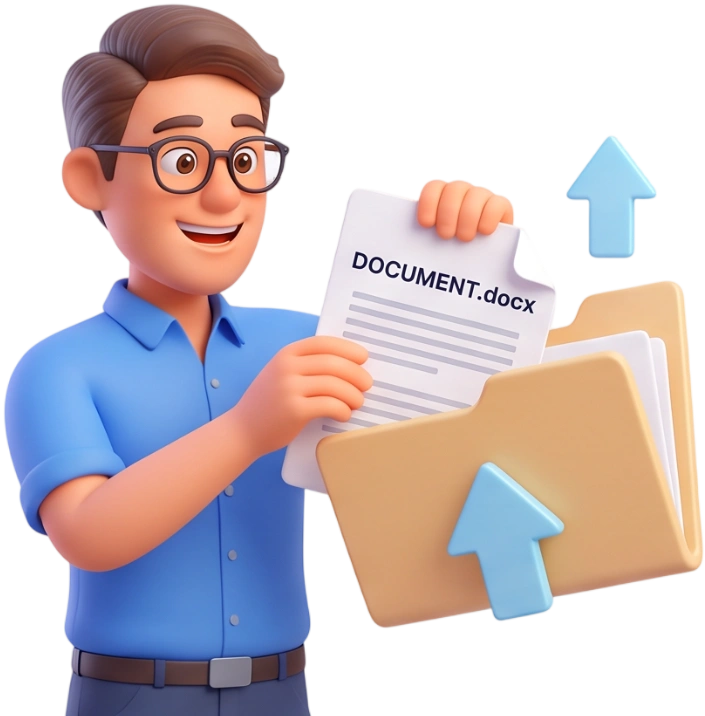
Step 1: Upload Your Word Document
Drag and drop your .docx file onto the upload area, or click to browse your device. The tool accepts DOCX files up to 100MB, and you can swap the file at any time with the Change File button.
Tip: Documents with mostly text convert the fastest, but images and tables are fully supported too.
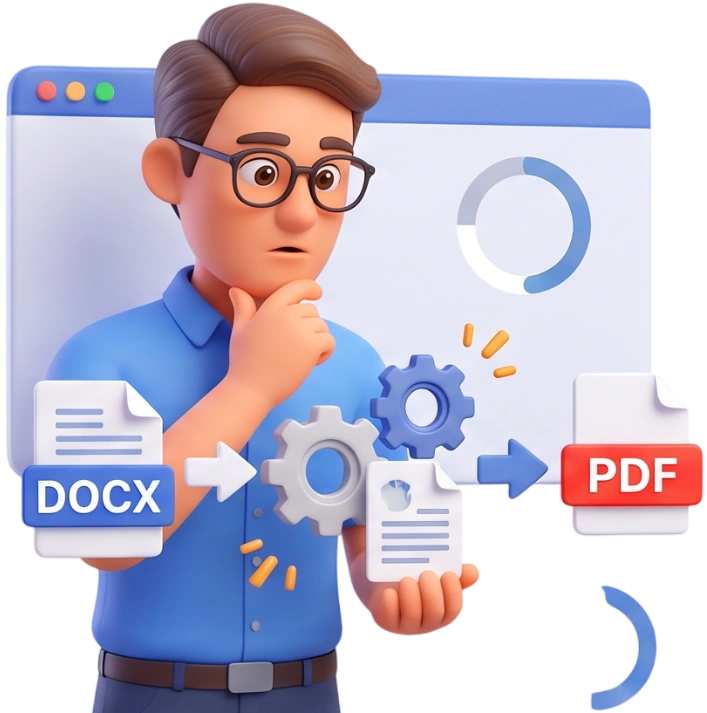
Step 2: Convert
Press the "Convert to PDF" button and the conversion runs entirely in your browser. Paragraphs, headings, lists, images, and page breaks are translated into a clean PDF layout.
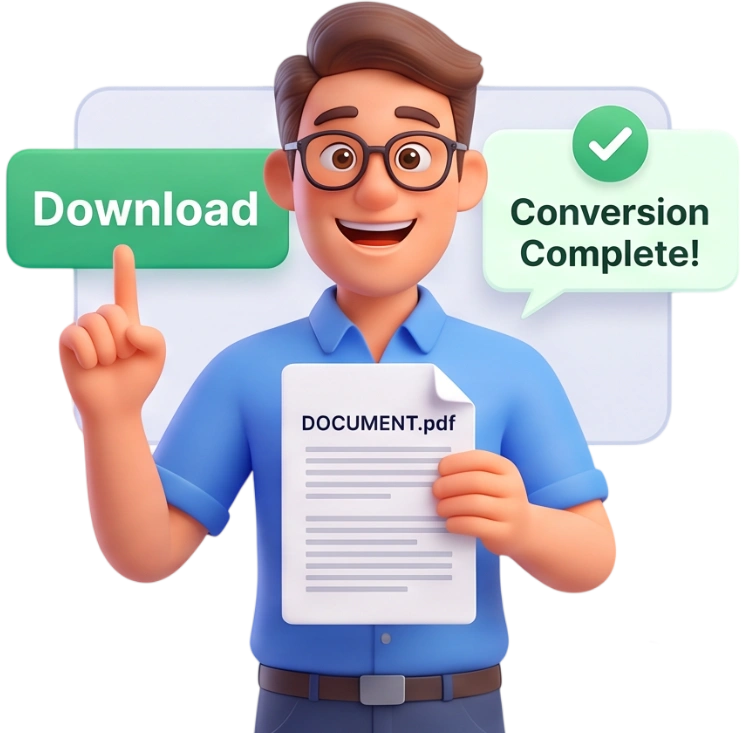
Step 3: Download Your PDF
When the progress bar finishes, the PDF downloads straight to your device. Open it in any PDF reader or share it right away — the layout is ready for printing or sending.
Frequently Asked Questions
Will my formatting survive the conversion?
Yes. Headings, bold and italic text, lists, tables, and paragraph spacing are preserved when your .docx is rebuilt as a PDF. For the cleanest results, use standard Word styles in the original document.
What happens to the images in my document?
Photos, logos, and other images embedded in your Word file are included in the PDF at their original resolution. They appear exactly where you placed them on the page.
Will unusual fonts display correctly in the PDF?
Text is rendered using its original font where possible, and fallback fonts are used when a font is missing. This is why the output looks consistent on any device, unlike a Word file on a machine without the right fonts installed.
Does the page layout stay the same as in Word?
Margins, page size, orientation, and page breaks are carried over into the PDF. A document that fits on 10 pages in Word will stay 10 pages in the PDF.
Can I convert a scanned or image-based Word file?
Yes, scanned pages and photos embedded in the document are preserved as images in the PDF. Note that the text itself cannot be searched unless the source document has real, editable text.
Why should I convert Word to PDF for sharing or printing?
A PDF locks in the exact look of your document, so recipients see the same layout whether they open it on a phone, tablet, or office computer. It also prints reliably on almost any printer.
Is this really free, with no account and no watermark?
Yes. Conversion is completely free, no account is needed, and your PDF is produced without any watermark, ad, or limit on how many files you convert.
Are my files uploaded to a server?
No. Everything runs locally in your browser, so your document never leaves your device. Nothing is uploaded, stored, or viewable by anyone else.
Is there a file size limit?
Each Word document can be up to 100MB, which covers everything from a one-page letter to a large illustrated report.
Can I convert Word to PDF on my phone?
Yes. The tool works on any modern browser, so you can convert documents on your smartphone or tablet while on the go.
Convert Your Word Document Now
Turn your .docx into a clean PDF — no signup, no watermarks, completely free.
Convert to PDF