Add Pages to PDF
Insert specific pages from one PDF into another at the position you choose.
Pull the exact pages you need from one PDF and insert them into another, right where you want them. Choose your two files, pick a position, select the pages, and download a combined document in seconds.
Drag & drop your PDF files here
or click to browse files
Why Add Pages to a PDF?
Instead of re-typing content or juggling several files, combine the best pages from multiple documents into one clean, organized file.
- Assemble a final report by pulling only the pages you need from earlier drafts.
- Merge selected invoice pages from several files into a single document to send at once.
- Build a tailored handbook or presentation by choosing exactly which pages to include.
- Keep every file separate and private — everything runs locally in your browser.
How to Add Pages to a PDF
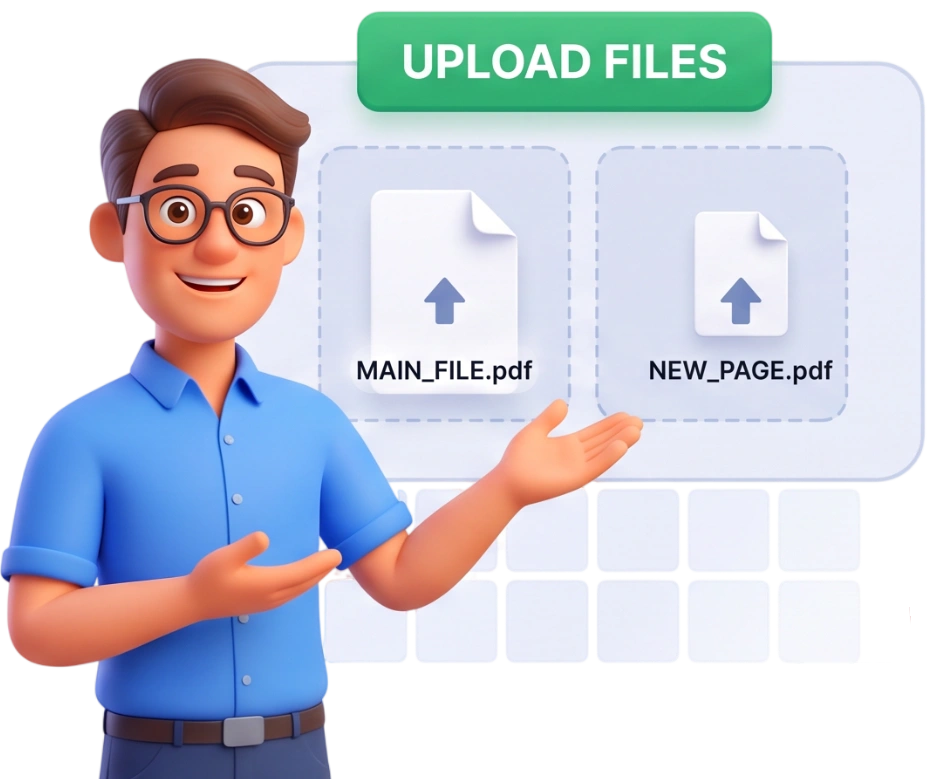
Upload Two PDFs
Drag and drop your base PDF and the source PDF into the upload area, or click to browse. The base PDF is the file the new pages will be added to, and the source PDF provides the pages you want to insert.
Tip: upload the originals so the pages you add keep their full quality.
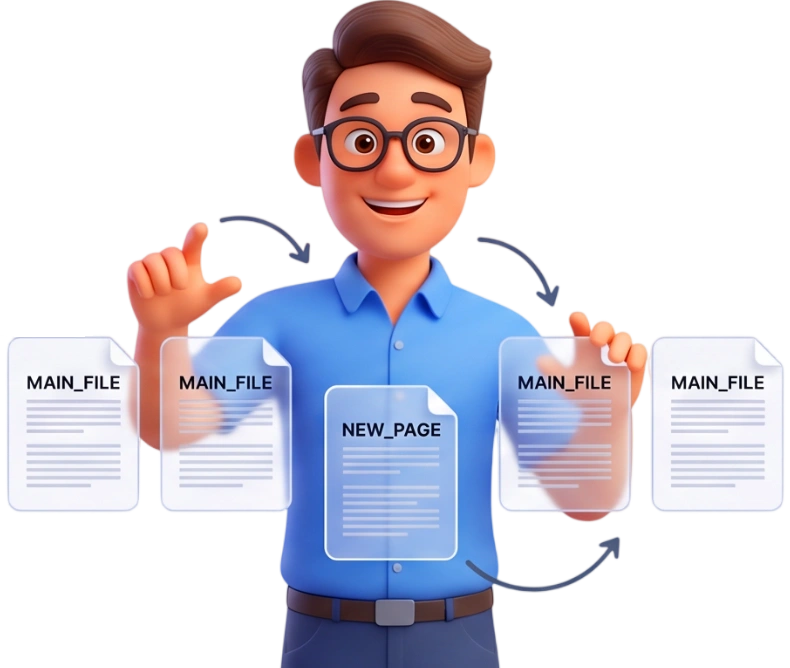
Pick a Position and Select Pages
Choose where the inserted pages should go — at the very beginning or after a specific page of the base PDF. Then click the thumbnails of the source pages you want to add; they turn blue with a badge to show they are selected.
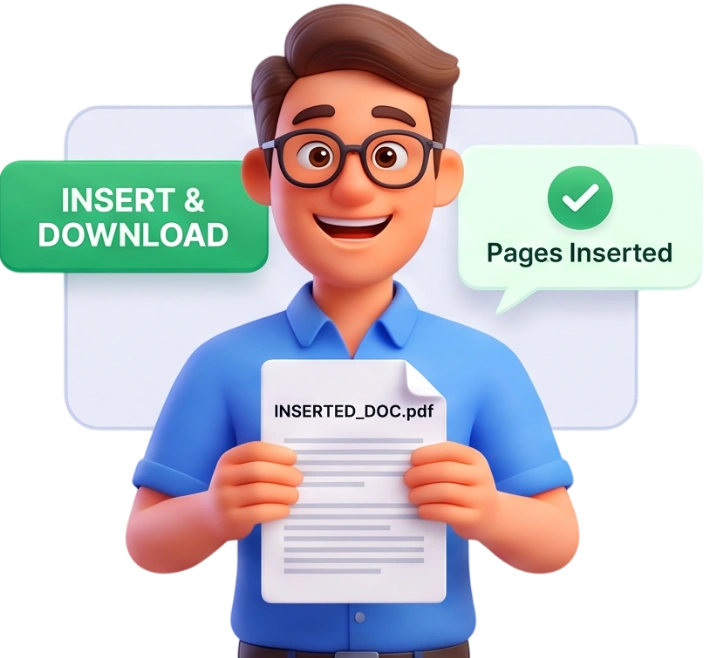
Download Your Combined PDF
Press Add Selected Pages and your new document is built instantly in your browser. Download it and your base file now contains exactly the pages you picked, in the exact spot you chose.
Frequently Asked Questions
Can I add pages from any PDF?
Yes. Upload any PDF as the source and pick the pages you want. Both the base and the source file can be scanned documents, text documents, or a mix of both.
Where can I insert the new pages?
You can place them at the very beginning of the base document, or after any specific page. Just click a base page thumbnail or type a page number to choose the exact spot.
Can I add just one page or a few pages?
Yes. Click the thumbnails of only the source pages you want — one, several, or all of them. The selected pages appear with a blue badge so you always know what will be added.
Is the order of the added pages kept?
Yes. Pages are inserted in the order they appear in the source PDF, and the position of every existing base page stays exactly as it was.
Are my files uploaded to a server?
No. Everything runs locally in your browser with JavaScript. Your documents never leave your device, and nothing is stored or shared.
Will the quality of my pages change?
No. The pages you add are copied exactly as they are, keeping their text, images, links, and formatting. Nothing is recompressed or degraded.
Is there a file size limit?
Each file can be up to 100MB, which covers anything from a one-page letter to a large illustrated report.
Do I need an account or is it free?
It is completely free with no account, no sign-up, and no watermark on your downloaded file.
Can I add pages to more than two files at once?
This tool combines one base PDF with one source PDF. For multiple documents, merge the files first, then use Add Pages to insert pages where you need them.
What happens to the original files?
Nothing. Your originals are never modified. The tool builds a new combined PDF and leaves the base and source files untouched on your device.
Add Pages, Free
No signup, no watermarks, completely free — combine your PDFs right in your browser.
Add Pages Now