Remove PDF Pages
Select and remove unwanted pages from a PDF file.
Remove unwanted pages from your PDF in just a few clicks. Upload the file, tap the pages you want to delete, and download a clean document right from your browser.
Drag & drop your PDF file here
or click to browse files
Why Remove PDF Pages?
A clean, focused document is easier to read, share, and print.
- Trim extra blank pages or scanning artifacts before sending a document to a client.
- Delete outdated pages from a contract or report so only the current information stays.
- Lighten a heavy file by dropping pages you no longer need to store or send.
- Prepare a clean extract for printing without wasting paper on pages you do not want.
How to Remove Pages
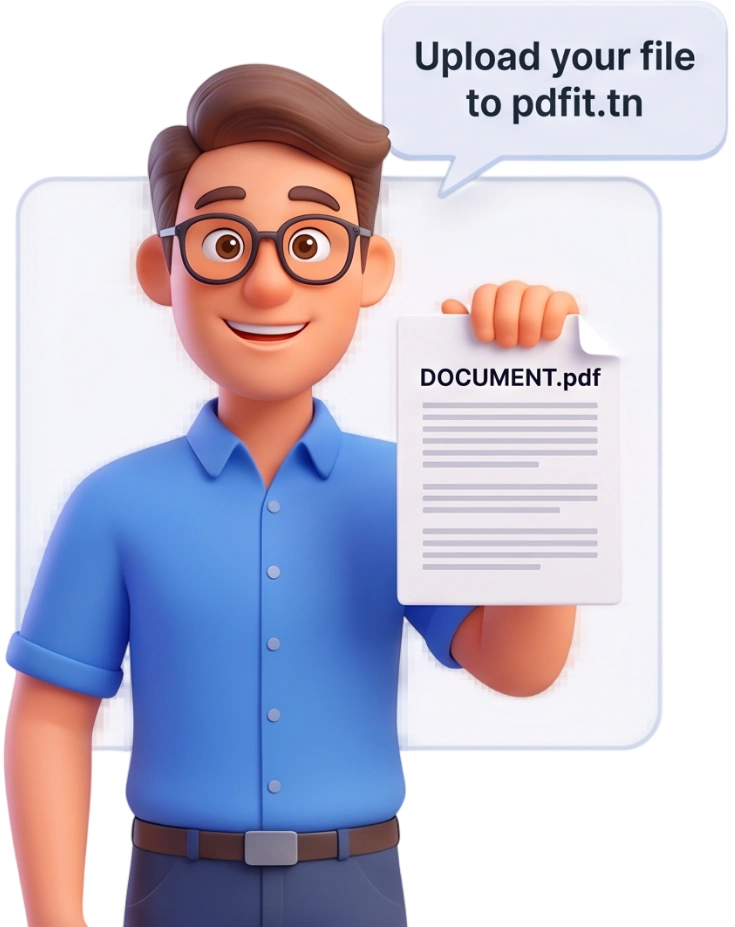
Upload Your PDF
Drag and drop your PDF into the upload area, or click to browse and choose it from your device. Files up to 100MB work fine, and thumbnails of every page appear instantly so you can see the whole document at a glance.
Tip: upload the original file so the pages you keep hold their full quality.
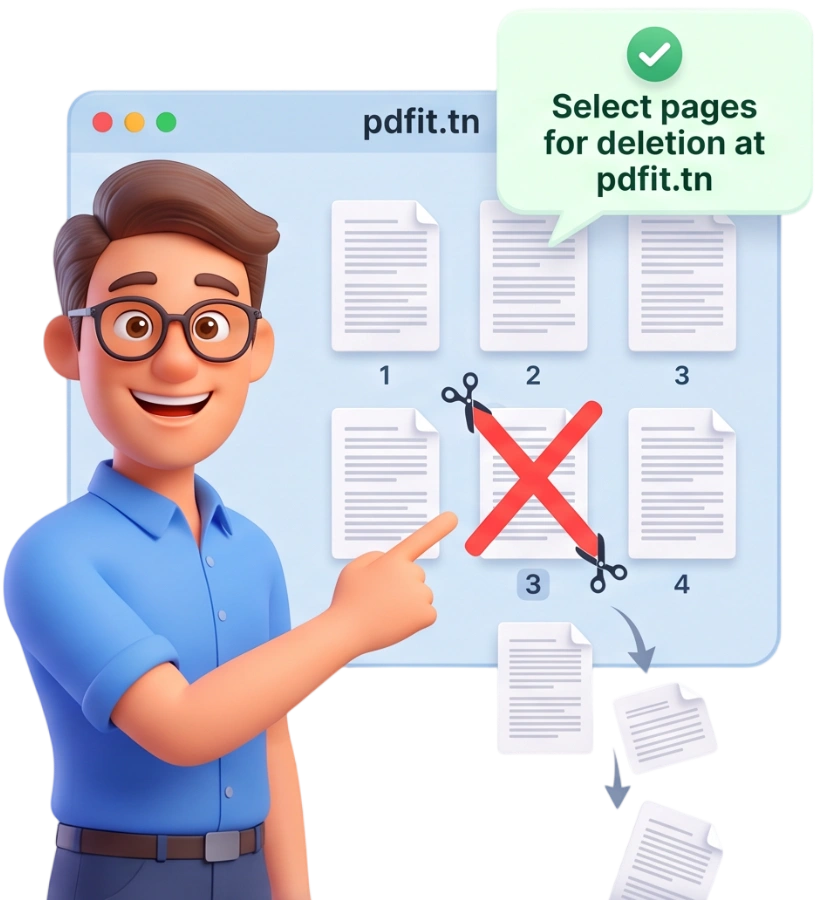
Select Pages
Click each page thumbnail you want to remove — selected pages turn red with a small badge. Use the Select All, Even, Odd, or Deselect All shortcuts to mark whole groups at once, and glance at the summary bar to see how many pages will remain.
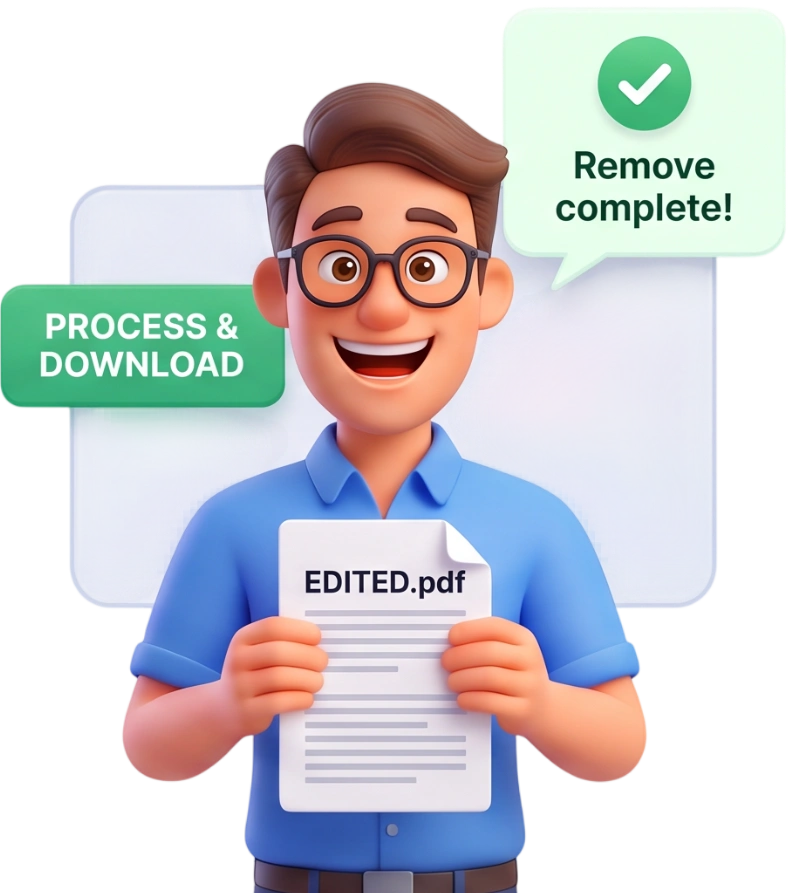
Download
Press Remove Selected Pages and wait a moment while the new file is built in your browser. Then download your cleaned PDF with the unwanted pages gone for good.
Frequently Asked Questions
Is there a limit on the file size?
Yes, files up to 100MB are supported. If your document is larger, try splitting it first and then removing pages from the smaller parts.
Are my PDF files uploaded to a server?
No. The whole process runs locally in your browser with JavaScript, and files are automatically deleted from memory after processing. Nothing is stored or shared.
Can I use the tool on my phone or tablet?
Yes. It works in any modern mobile browser with no app to install, so you can clean up a PDF while you are on the go.
Is it really free and do I need an account?
It is completely free with no account, no sign-up, and no watermark on your downloaded file. Just upload, select, and download.
Will the quality of my PDF change?
No. Pages you keep are left untouched and keep their original text, images, links, and formatting. Removing pages does not recompress or degrade the document.
Can I remove just one single page?
Yes. Click the single page thumbnail to select it, then press Remove Selected Pages to delete only that page while keeping every other page.
Can I remove a range of pages, like pages 5 to 10?
There is no typed range box, but it is easy: just click each thumbnail from page 5 through page 10 to select them all, then remove them in one go. The Even and Odd shortcuts help when you want every second page.
Can I undo the removal afterwards?
Once you download the new file the removal is permanent in that file. Keep your original PDF as a backup, or simply re-upload it here and make a different selection.
Is the deletion permanent?
Yes, the pages you select are permanently removed from the downloaded PDF. The order and numbering of the remaining pages stay exactly as before.
What happens to the pages I keep?
They keep their original order, content, bookmarks, and links. Removing pages never rewrites or alters the rest of your document.
Remove Pages, Free
No signup, no watermarks, completely free — clean up any PDF right in your browser.
Remove My Pages