Split PDF Files
Extract pages from a PDF into separate files. Choose exactly which pages you need.
Split a PDF into separate files online in seconds with PDFit. Choose Every Page to turn each page into its own PDF, or enter custom page ranges to extract exactly the pages you need. Download the results individually or as a single ZIP file.
Drag & drop your PDF file here
or click to browse files
Why Split a PDF?
Isolate the pages you actually need from a large document so you can share, archive or print exactly what matters.
- Send only the relevant pages of a long report to a client or colleague.
- Separate a single scanned or combined PDF back into its original individual documents.
- Extract a few key pages from a manual to attach to an email or a form.
- Break up a large file into smaller PDFs that are easier to store and organize.
How to Split a PDF
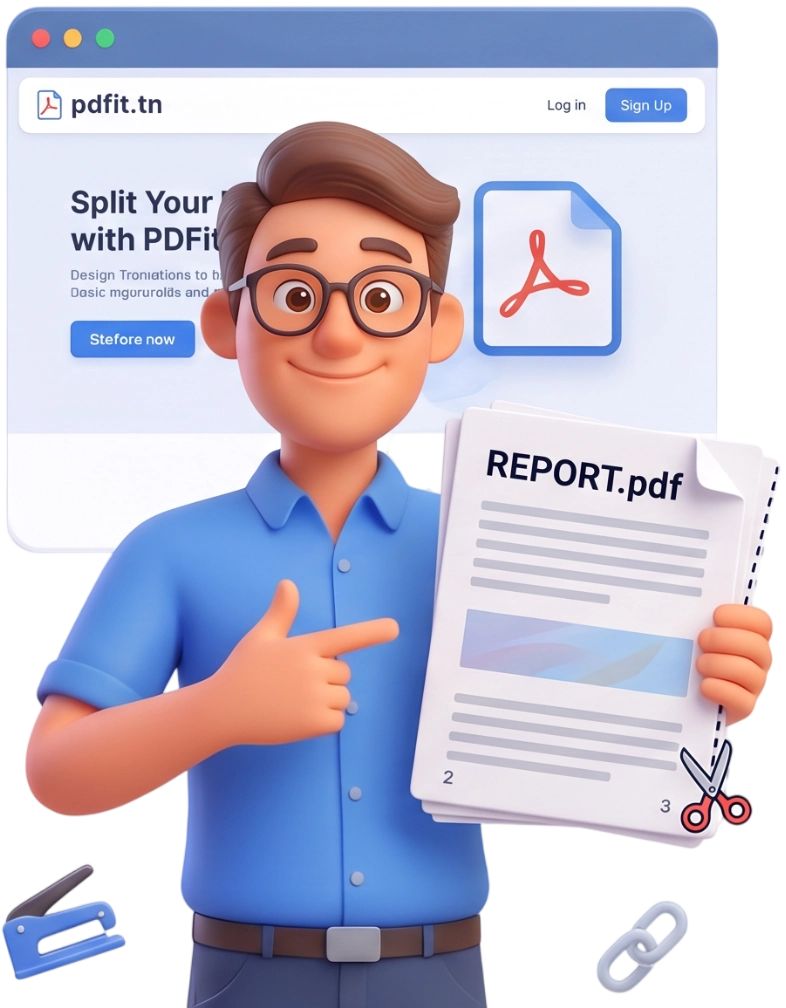
Step 1: Upload Your PDF
Drag and drop your PDF onto the upload area or click to browse your device. Files up to 100MB are accepted, and every file is processed locally in your browser.
Tip: Upload the whole document even if you only need a couple of pages, the tool lets you pick precisely.
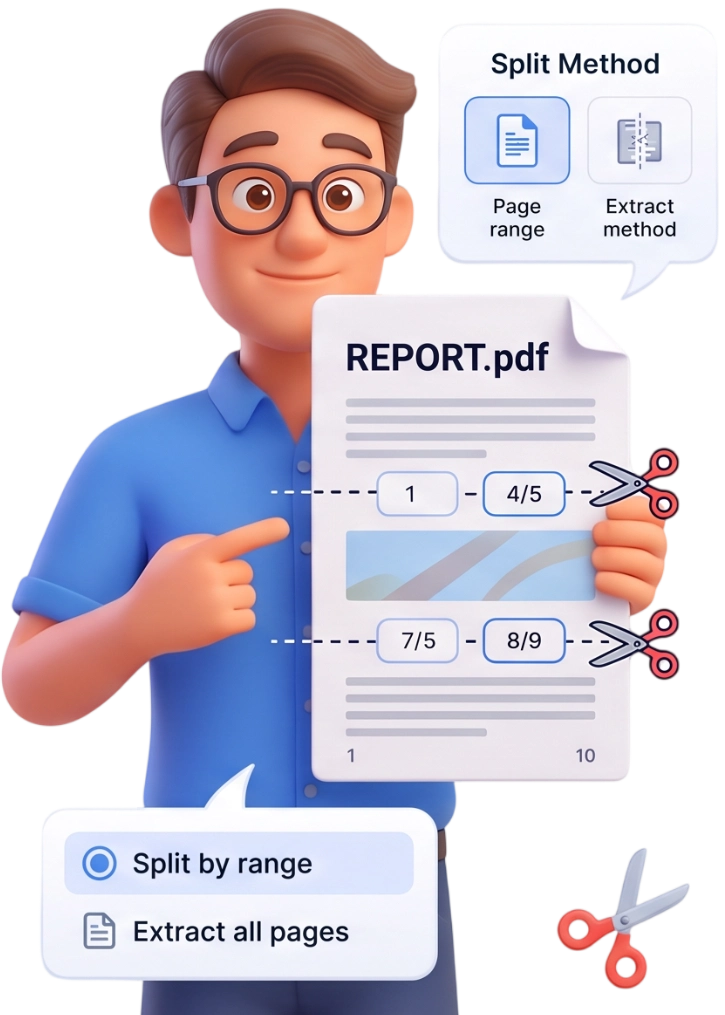
Step 2: Choose Your Pages
Pick Every Page to create one PDF per page, or switch to Page Ranges and type ranges like 1-3, 5, 7-10 to select exactly the pages you want to extract.
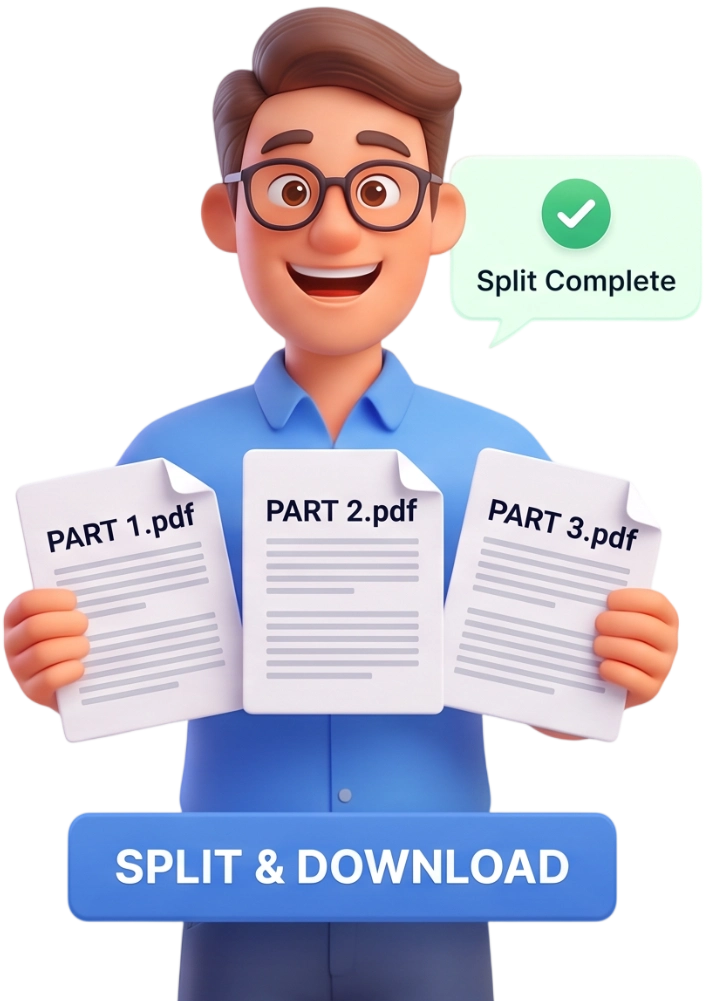
Step 3: Download Your Files
Click Split PDF, then download each file separately or grab everything at once with the Download All (ZIP) button.
Frequently Asked Questions
Is there a file size limit?
You can upload PDFs up to 100MB. That covers the vast majority of documents, and since splitting happens locally in your browser, large files still process quickly.
Are my documents uploaded to a server?
No. Your PDF never leaves your device. Everything runs locally in your browser and the file is automatically cleared from memory when you are done.
Can I use PDFit on my phone?
Yes. The split tool works on any phone, tablet or desktop browser, so you can break up PDFs wherever you are without installing anything.
Is splitting free?
Completely. There is no account required, no watermark and no hidden limits. Split as many PDFs as you like for free.
Will the extracted pages keep the original quality?
Yes. The text, images, fonts and layout of every extracted page are preserved exactly as they appear in the original file.
What is the page range syntax?
Type single pages and ranges separated by commas, for example 1-3, 5, 7-10. That extracts pages 1 to 3, page 5, and pages 7 to 10 as separate files.
What does Every Page mode do?
Every Page mode creates one separate PDF for each page in your document, so a 12-page file becomes 12 individual PDFs that you can download one by one or all at once.
Can I extract a single page?
Yes. Simply type that page number on its own, for example 5, and the tool will produce one PDF containing only that page.
Is my original file preserved?
Yes. The tool never modifies or overwrites your original PDF, it only creates new files from the pages you select, so the source document stays untouched.
Do the page ranges have to be in order?
No. You can list them in any order, such as 7-10, 2, 1-3, and each range is turned into its own separate PDF.
Split Your PDF Now
No signup, no watermarks, completely free. Extract the pages you need and download them in seconds.
Split My PDF