Unlock PDF
Remove password protection from your PDF files. Enter the password to unlock your document.
The Unlock PDF tool removes the password protection from your PDF files in a few seconds. Enter the password, and the document is unlocked right in your browser with its text, layout, and formatting left exactly as they were. No installation, no uploads to a server, and no account required.
Drag & drop your PDF file here
or click to browse files
Why Unlock a PDF?
A locked PDF forces you to enter a password every time you open it, and permissions can block printing, copying, and editing.
- Open files you own or have the password for without hunting for special software.
- Remove restrictions that stop you from printing, copying, or editing documents you legitimately hold.
- Make archived files easy to read again on devices that always prompt for the password.
- Pass an unlocked copy to teammates, clients, or reviewers who do not need the password.
How to Unlock a PDF
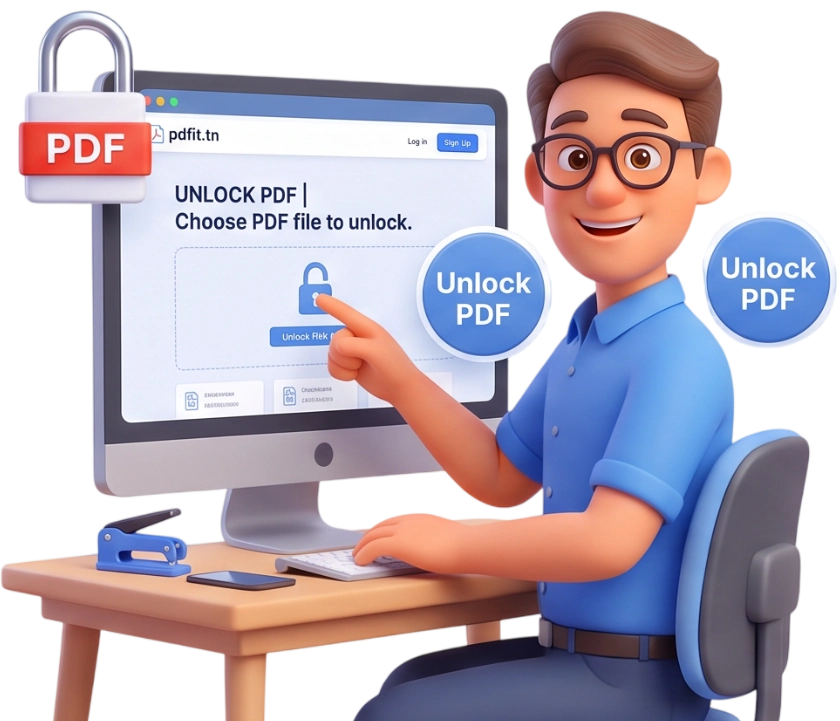
Step 1: Upload Your Locked PDF
Drag and drop your password-protected PDF into the upload area or click to browse. Files up to 100MB are supported, and everything is processed locally in your browser.
Tip: have the exact password ready before you start, since the document can only be unlocked with the password that was used to protect it.
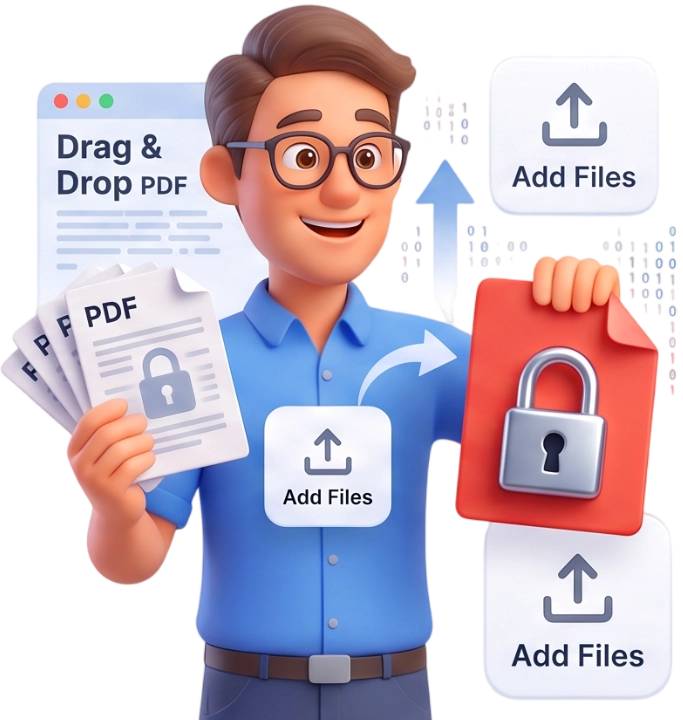
Step 2: Enter the PDF Password
Type the password into the Password field that appears once your file is selected. PDFit uses it to open the document and strip the protection.
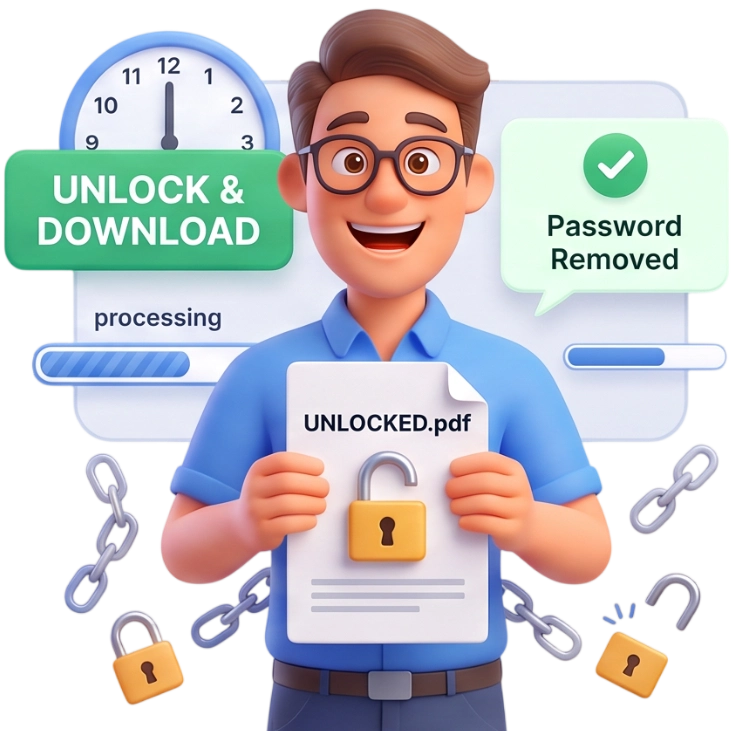
Step 3: Unlock and Download
Click Unlock PDF. The tool removes the password and any permission restrictions, then downloads your unlocked document. Open it to confirm it no longer asks for a password.
Frequently Asked Questions
What is the maximum file size I can unlock?
You can unlock PDFs up to 100MB per file. If a file is larger, try compressing it first and then unlock the smaller copy.
Are my files uploaded to a server?
No. Everything runs locally in your browser, your PDF never leaves your device, and nothing is stored or auto-deleted from a server, because there is no server involved.
Can I unlock a PDF on my phone or tablet?
Yes. The tool works in any modern mobile browser, so you can unlock documents on a smartphone or tablet without installing an app.
Is the unlock tool free, and do I need an account?
It is completely free. No account, no login, no watermark added to your file, and no hidden fees.
Does unlocking change the content of my PDF?
No. The tool only removes the password and permission flags. Your text, images, and layout stay exactly the same.
What is the difference between an owner password and a user password?
A user password is the one needed just to open the file. An owner password controls restrictions such as printing, copying, and editing. PDFit removes both kinds of protection when the correct password is provided.
What restrictions are removed when I unlock a PDF?
All permission restrictions are cleared, so you can freely open, print, copy, and edit the document again, subject to the rights you hold over it.
What happens if I enter the wrong password?
PDFit tells you the unlock did not work and asks you to check the password and the encryption type. Try the exact password again, including any capitals, numbers, or symbols.
Can I unlock a PDF if I forgot the password?
No. PDFit cannot bypass or recover a password, and for security reasons it should not. Only unlock documents when you know the password or own the rights to the file.
Will my PDF still ask for a password after I unlock it?
No. Once unlocked, the downloaded file opens directly without any password prompt in your PDF reader.
Unlock Your PDF Free
Remove the password in seconds, no signup, no watermarks, completely free.
Unlock My PDF